How do I share a map, or download a list, of facilities in my county?
Breadcrumbs
Changed
This page provides step-by-step instruction for using the Data Publication Tool to share data.
Step 1. Go to the FLIGHT
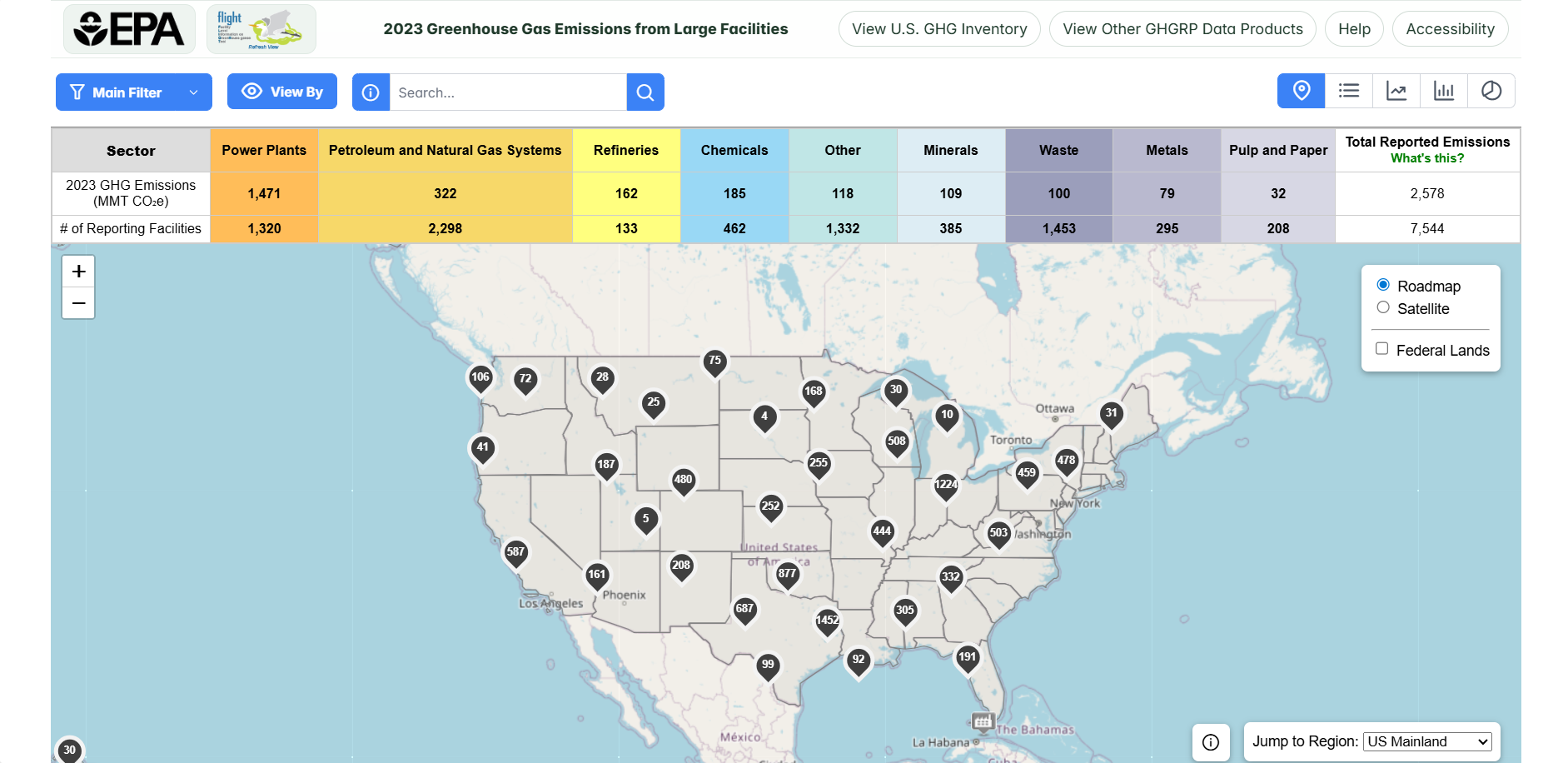
When you first enter the Facility Level Information on Greenhouse Gases Tool (FLIGHT), you will be presented with the default map view.
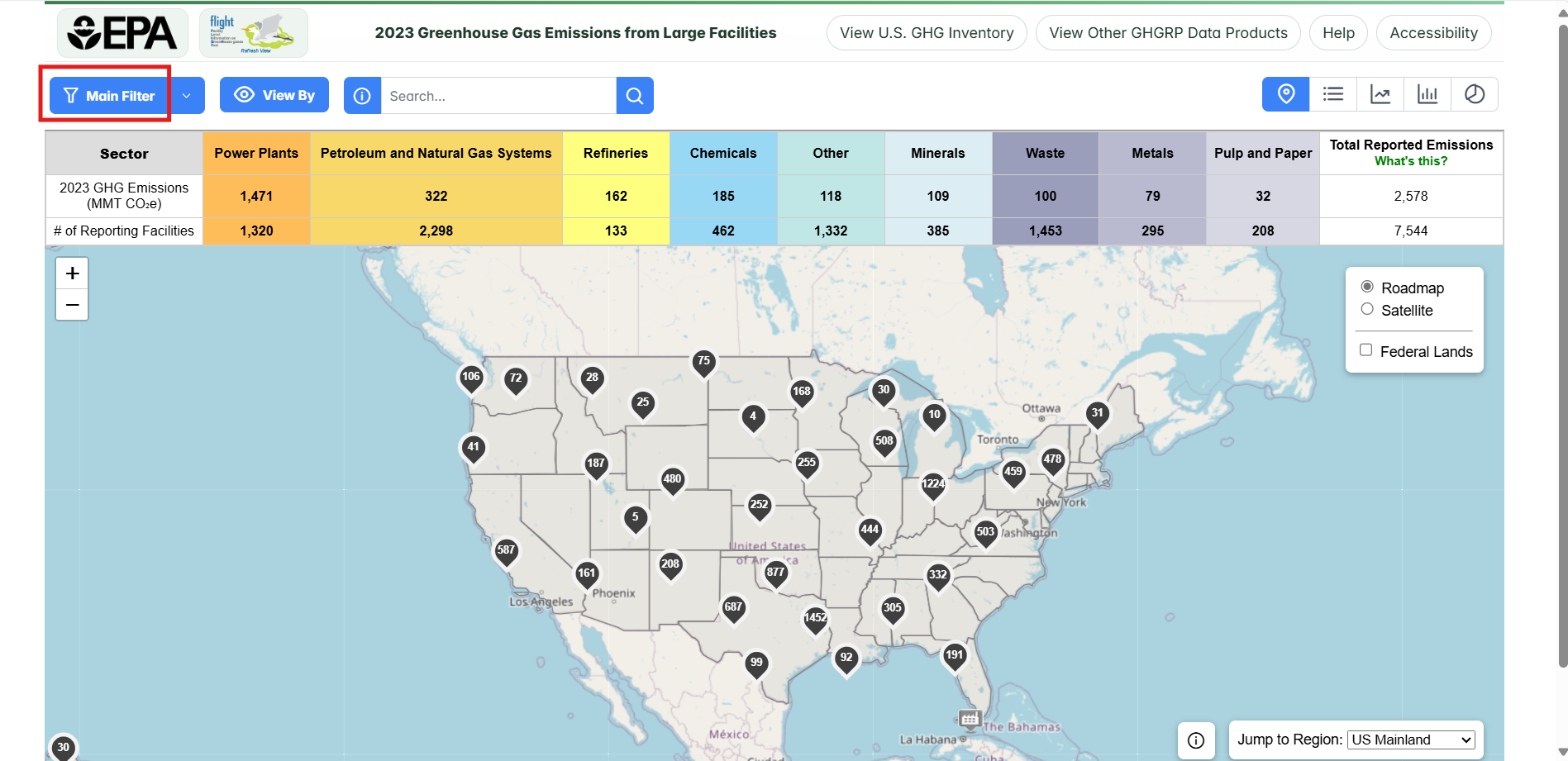
Step 2. Click on the "Main Filter" button on the top left
Click on the main filter button on the top left to open the filter menu.
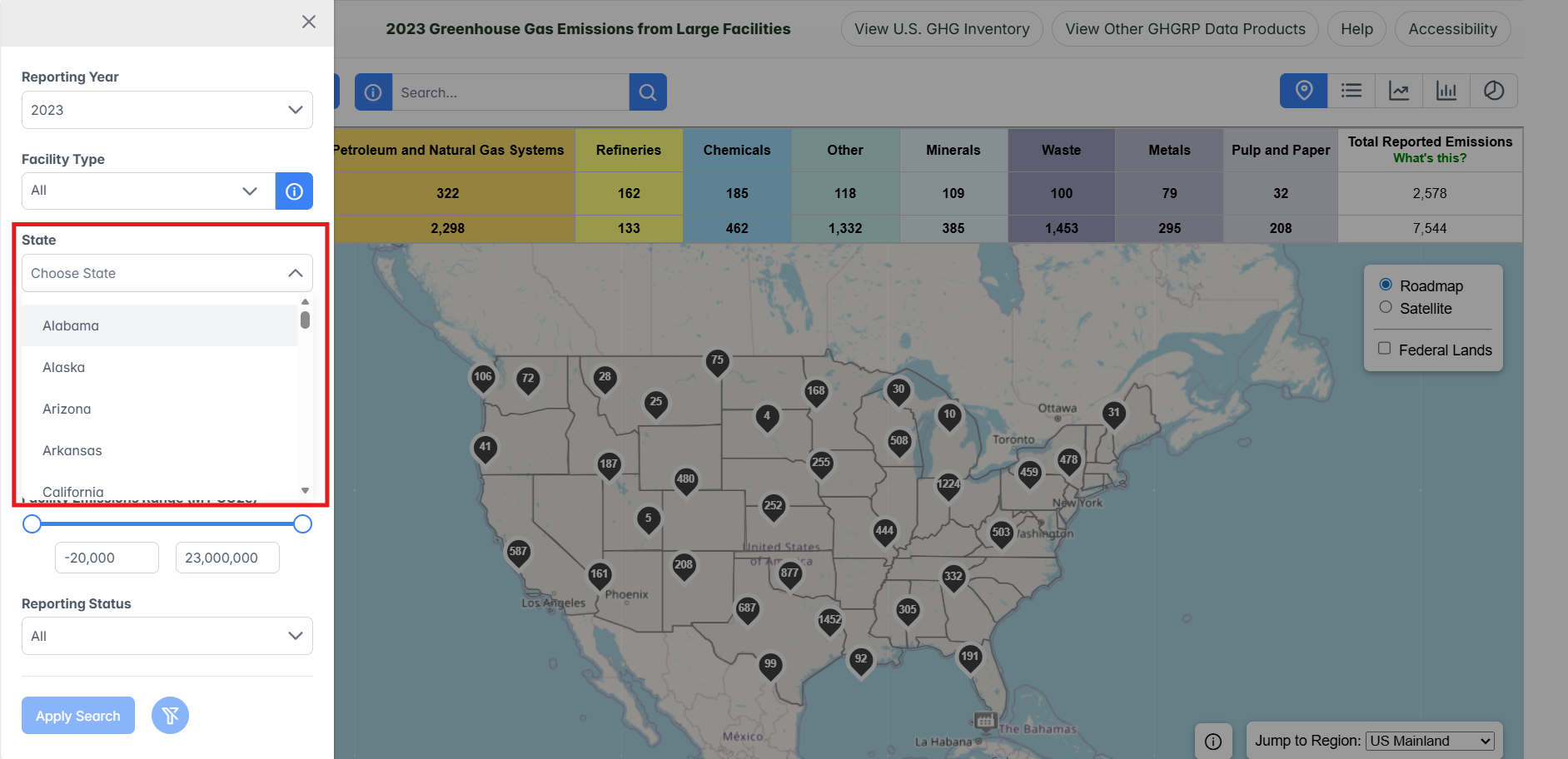
Step 3. Select a state
Use the drop-down menu to select a state.
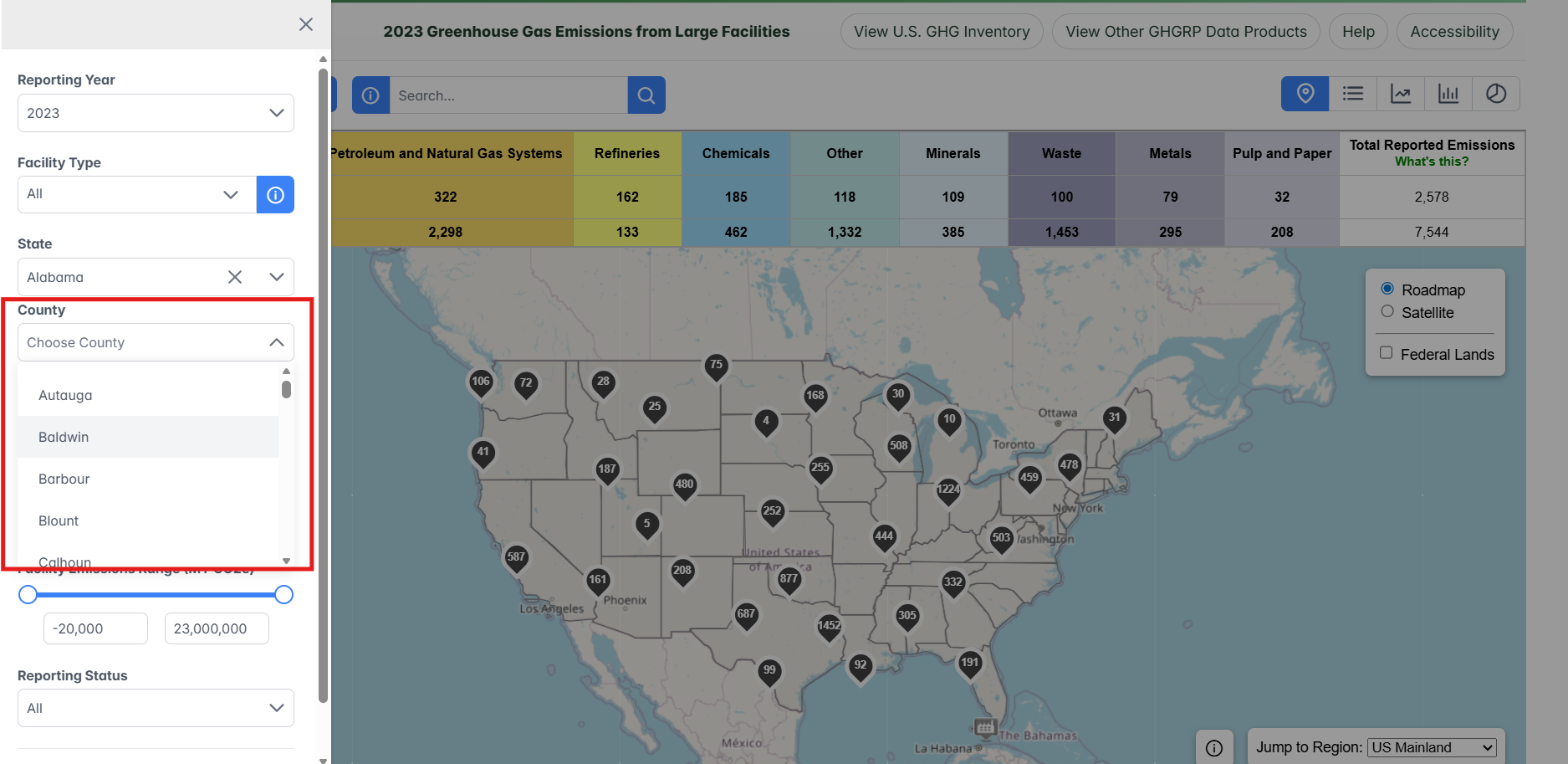
Step 4. Select a county
Use the drop-down menu to select a county.
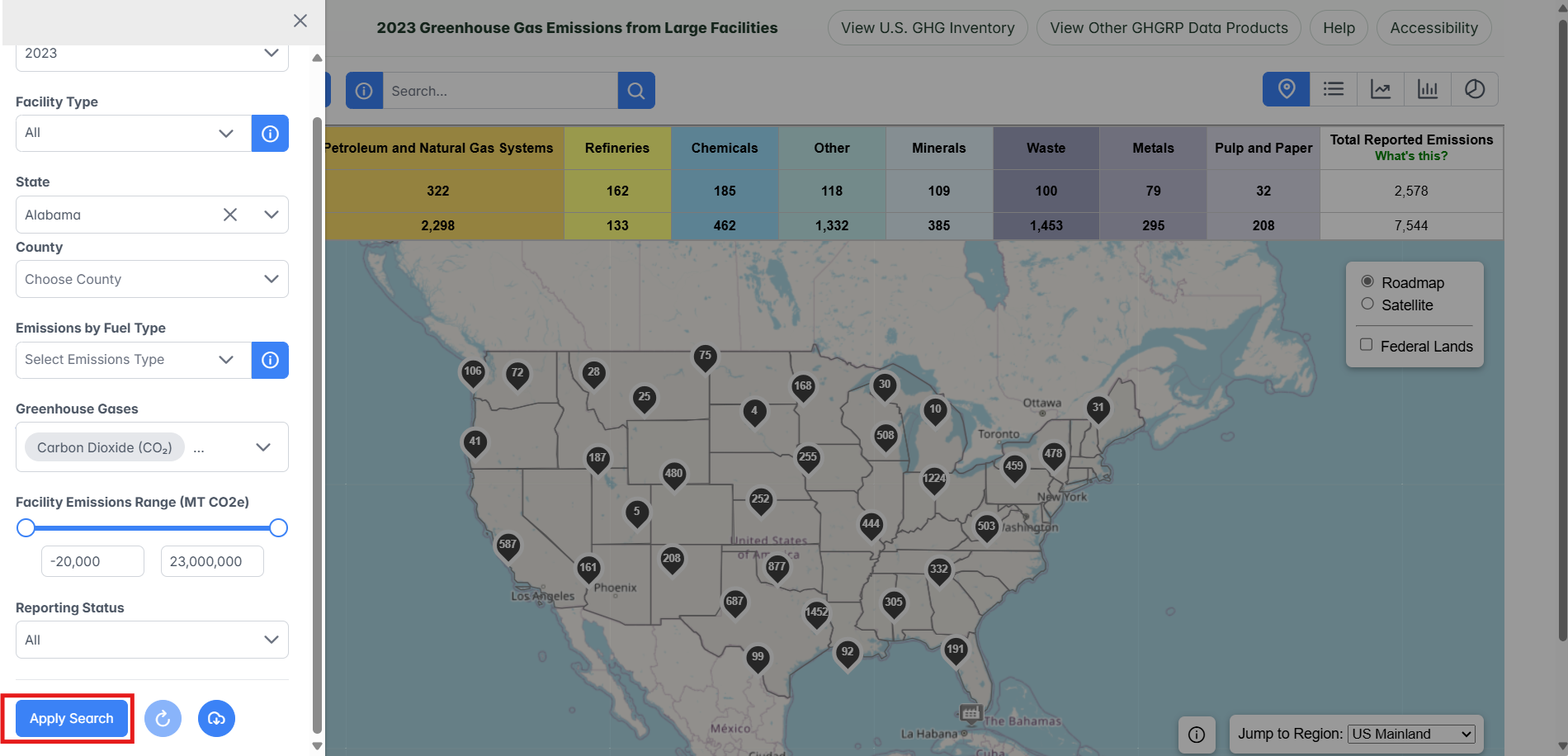
Step 5. Click "Apply Search" button
Click the "Apply Search" button at the bottom left of the screen.
Step 4. Share the map
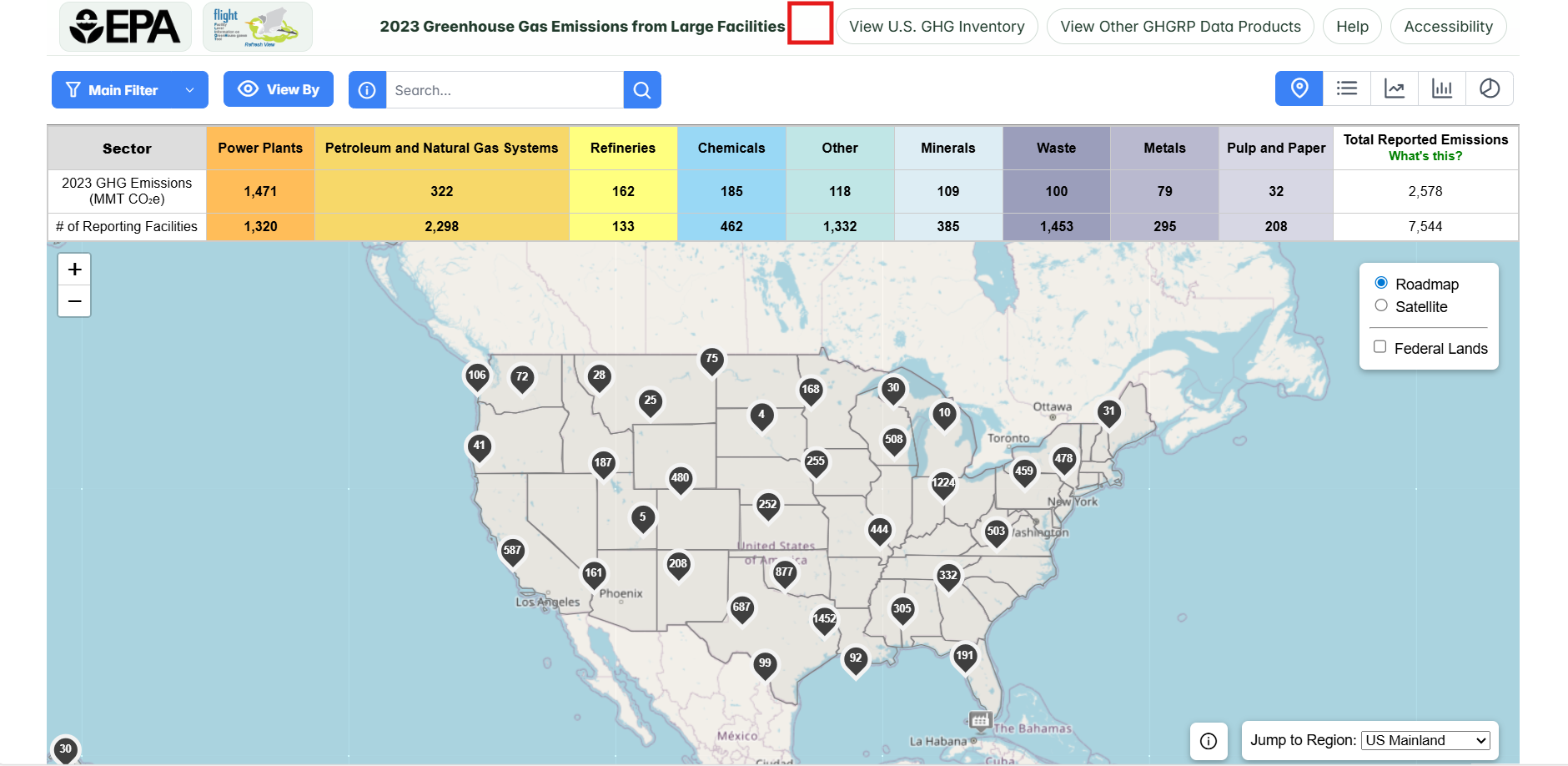
Click the "Share" button near the top of the screen and select a sharing option in the popup window.
Step 5: Download List of Facilities
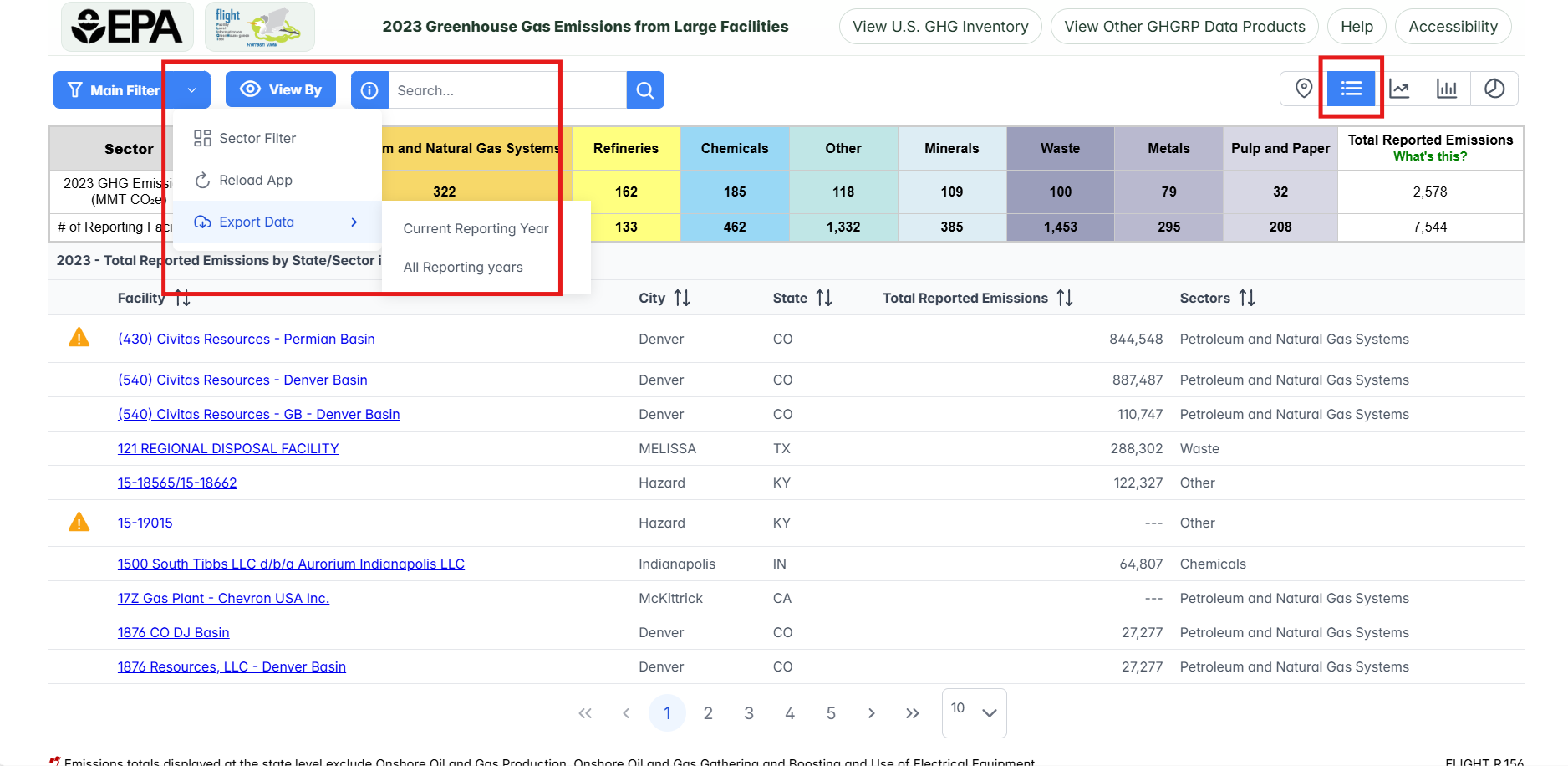
To download the list of facilities that met your search criteria in a spreadsheet, first, navigate to the list view, and then click Export Data button by clicking the down arrow to attached to the right side of the "main filter" button.
Users can choose to export data for all reporting years or the current reporting year.