
Changing the DR or ADR
Breadcrumbs
Changed
When changing Facility Representatives or the Facility Profile (i.e., those things that appear on the Certificate of Representation (COR)) only one change can be made at a time. If the COR status is anything other than "Signed and Complete" the pending change must first be completed before a new change can be made.
Changing the Designated Representative (DR)
Who can change the DR? The current DR, the Alternate DR (ADR), or an Agent.
Note, there can be only one DR per facility or supplier. A user can only have one role per facility. So, for example, a user cannot be both the DR and an Agent simultaneously.
- To begin, login to e-GGRT.
- Click the Facility Management tab.
- Click on the Facility Name.
- On the Facility Summary page click the CHANGE button next to the DR's name.
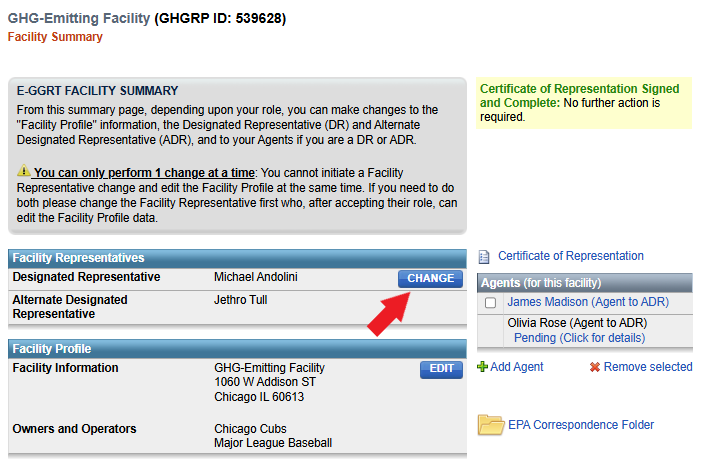
After clicking CHANGE you will be presented one or two options...
Option 1: Promote the ADR
Note, this option is only available if an ADR already exists.
- Click the "Promote the Alternate Designated Representative (ADR)" link.
- Click the CONTINUE button.
- Click the PROMOTE button.
- Finishing the promotion...
If you are the ADR (i.e., you are promoting yourself) you will immediately be asked to accept the role and sign the COR.
If you are not the ADR, the ADR will receive an email letting them know they should login to e-GGRT to accept the promotion and electronically sign the COR.
Note, the new DR will replace the old DR. The old DR will lose their access to the facility in e-GGRT.
Note, the new DR should retain any Agents they appointed in their role as ADR, and they will have the option to retain the previous DR's Agents.
Option 2: Appoint a new DR
Note, the new DR must be an e-GGRT user in order to accept the role. If the new DR is not currently a user, he or she may begin the e-GGRT user registration process immediately.
- Click the "Create a new DR" link to reveal the invitation form.
- Complete the NEW DR form (see picture below) and click the CONTINUE button.
- Click the CREATE button.
- EPA will review the new DR appointment. Upon approval, e-GGRT will send the new DR an email explaining how to log in, accept the role, and electronically sign the COR.
Note, the new DR will replace the old DR. The old DR will lose their access to the facility in e-GGRT.
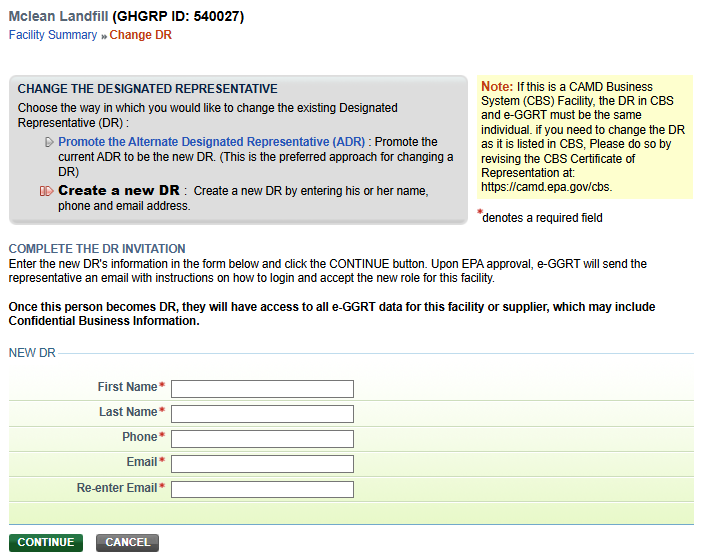
When the new DR accepts their role, they will have the option to change the ADR or to leave the current ADR as-is (if there is a current ADR listed).
The new DR will also have the option to retain the previous DR's Agents and/or add new Agents. For information on how to add new Agents, edit existing Agents, or delete Agents, the new DR may refer to the Changing Agents
Changing the Alternate Designated Representative (ADR)
Who can change the ADR? Only the current DR.
Note, having a facility ADR is optional. There can be only one ADR per facility or supplier. A user can only have one role per facility. So, for example, a user cannot be both the ADR and an Agent simultaneously.
- To begin, login to e-GGRT.
- Click the Facility Management tab.
- Click on the Facility Name.
- On the Facility Summary page, click the CHANGE button next to the DR's name (only the DR will see this button).
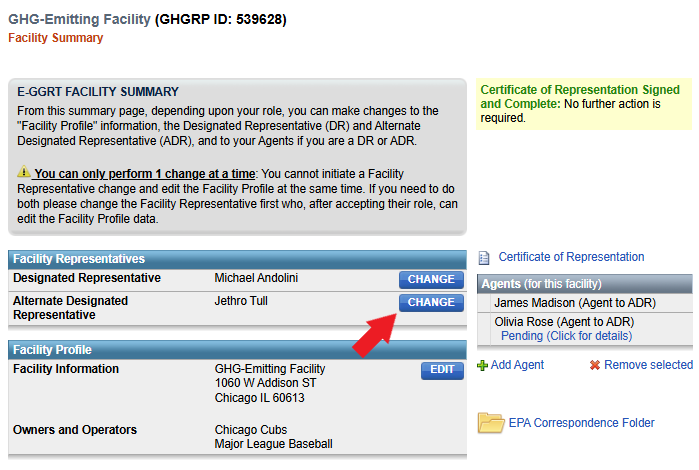
After clicking CHANGE you will be presented one or two options...
Option 1: Remove the ADR
Note, this option is only available if an ADR already exists. Removing the ADR will leave the facility without an ADR. A new ADR can be added at a later date.
- Click the "Remove the ADR" link.
- Click the CONTINUE button.
- Click the REMOVE button.
- Electronically sign the revised Certificate of Representation (COR).
Note, the outgoing ADR will no longer be able to access data for this facility or supplier. Any of the outgoing ADR's Agents will also lose access, unless they are also Agents to the DR.
Option 2: Appoint a new ADR
Note, the new ADR must be an e-GGRT user in order to accept the role. If the new ADR is not currently a user, he or she may begin the e-GGRT user registration process immediately.
- Click the "Create a new ADR" link to reveal the invitation form.
- Complete the NEW ADR form (see picture below) and click the CONTINUE button.
- Click the CREATE button.
- EPA will review the new ADR appointment. Upon approval, e-GGRT will send the new ADR an email explaining how to log in, accept the role, and electronically sign the COR.
Note, the new ADR will replace the old ADR. The old ADR will lose their access to the facility in e-GGRT.
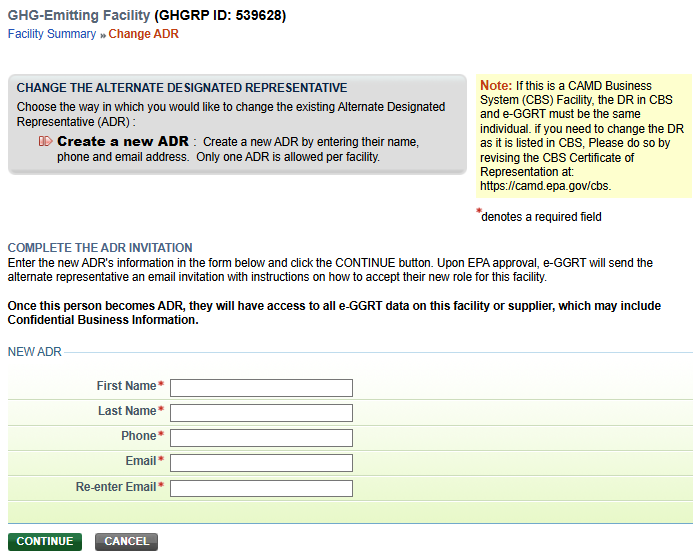
When the new ADR accepts their role, they will have the option to retain the previous ADR's Agents and/or add new Agents. For information on how to add new Agents, edit existing Agents, or delete Agents, the new DR may refer to the Changing Agents